
Apple devices on summer holiday: 6 tips to protect your data and luggage
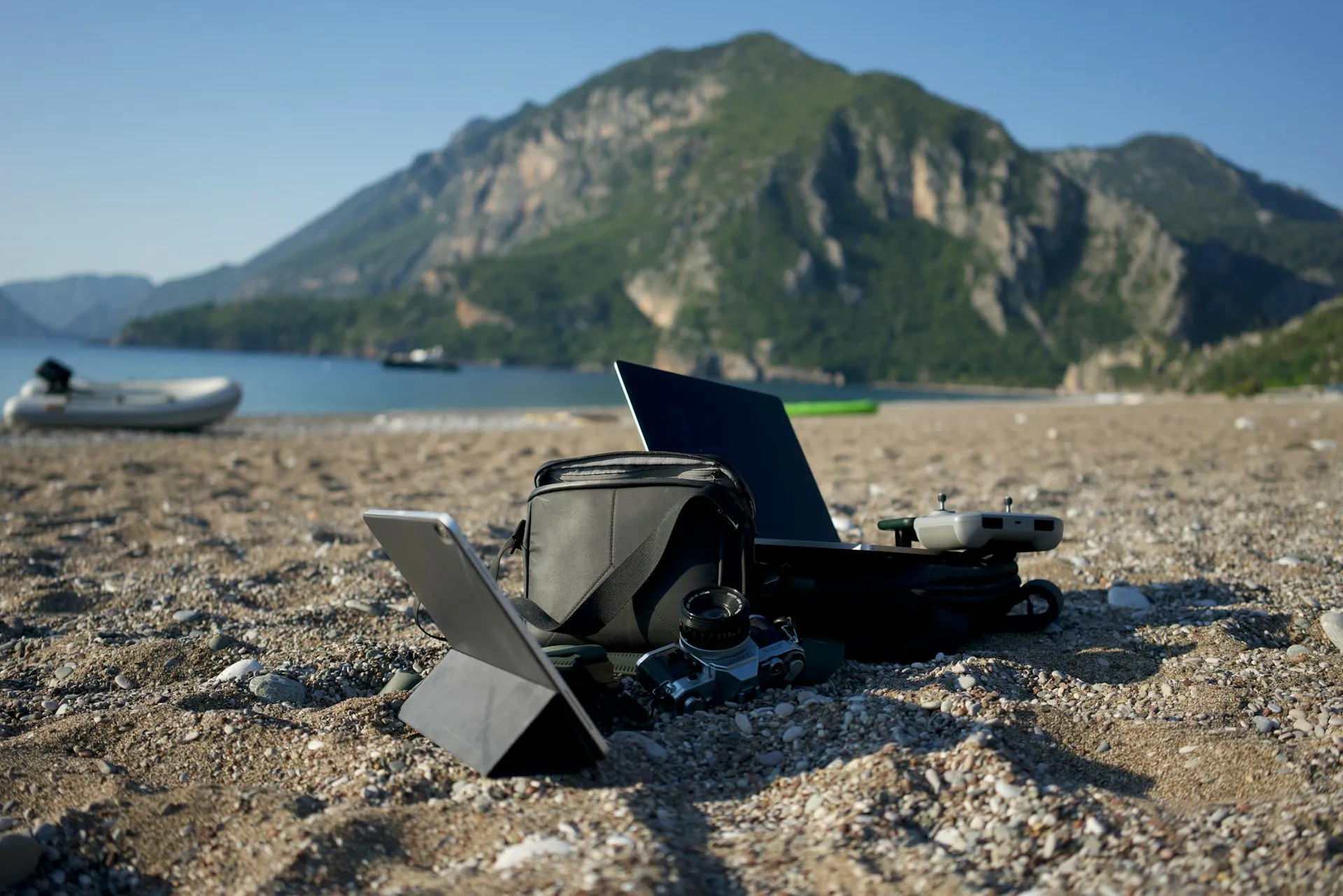
For many professionals, the summer holiday doesn't mean going completely offline: your MacBook, iPhone and iPad come along too. Handy for finishing something off on the go, but travelling brings risks you don't face at home: theft, heat and unsecured Wi-Fi. These six tips keep your devices, your luggage and your business data safe.
In short
Why make a full backup first?
Never set off without a fresh backup, because a lost device is easier to replace than your lost files. According to research by the Ponemon Institute, up to 600,000 laptops go missing at US airports every year, and only a third of the devices that are found are ever collected. A stolen or forgotten MacBook hurts most when your data lived only on that one device. So before you leave, make both a Time Machine backup to an external drive that stays at home and an iCloud backup of your iPhone and iPad. That way your files, photos and settings are safe in the cloud, and you can fully restore a new device in a matter of minutes. Before you go, check in System Settings → Apple ID → iCloud that syncing has finished, so you know for certain the latest version is included.
Quick checklist
How do you protect a Mac against theft while travelling?
A thief may take your device, but with the right settings, not your data. Laptop theft is a real risk: industry reports estimate that more than two million laptops are stolen in the US every year, and barely 3% are recovered. Even so, the right configuration makes a stolen Mac worthless to the thief and unreadable to anyone else. Before you leave, start by turning on "Find My Mac" and "Find My iPhone" in System Settings → your name → Find My, so you can locate, lock or completely erase a device remotely. This automatically switches on Activation Lock as well, which makes it impossible to reactivate the device without your Apple ID. Finally, turn on FileVault in Privacy & Security, so your entire disk is encrypted and nobody can read your files, not even by taking the drive out. For business data, by the way, that encryption isn't a luxury: under the GDPR it's often an obligation.
A thief can take your device, but with the right security, never your business data.
Quick checklist
How do you use public Wi-Fi safely when travelling?
Free Wi-Fi at the hotel, the airport or a café is convenient, but risky. According to a Forbes Advisor survey, 41% of travellers have already had personal information compromised on public networks, while 34% don't use a VPN to protect themselves. Most incidents happened precisely where you tend to log in on the move: on planes (67%) and in hotels (56%). The answer isn't to avoid public Wi-Fi altogether, but to encrypt your traffic. Use a VPN for that: it shields all your data traffic from anyone snooping on the same network. If you're working with sensitive business data, you're better off using your iPhone as a Personal Hotspot instead of the public network, and switching off automatic joining of unknown Wi-Fi networks in Settings → Wi-Fi.
Quick checklist
How do you protect your MacBook from summer heat?
Summer heat is the silent enemy of your Apple devices. Apple says a Mac laptop is best used at an ambient temperature between 10 °C and 35 °C; for storage, anything from -25 °C to 45 °C is fine. Go beyond that range and the battery can permanently lose capacity, and the device will shut itself down to protect itself. So don't leave your device in direct sunlight by the pool or on the beach, and cover it if you step away for a moment. If your iPhone does show a temperature warning, turn it off and let it cool down in the shade before you carry on working. And don't charge a hot device straight away either, because charging generates extra heat that only makes the problem worse.
Quick checklist
Which chargers and power should you bring?
Few things are as frustrating as a flat device when you're travelling, especially when you suddenly need a different plug outside the EU. A little preparation stops you running out of power along the way. First, pack a travel plug or adapter that suits your destination, along with your original USB-C charger. A single powerful USB-C charger with multiple ports can also charge your MacBook, iPhone and iPad at the same time, which saves weight and clutter in your suitcase. For long transfers, train journeys or beach days without a socket, a power bank bridges the gap until you can charge again. Also turn on Low Power Mode, on your iPhone in Settings → Battery and on your Mac via the battery menu, to make your battery last longer when there's no socket nearby.
Quick checklist
Tracking your luggage with an AirTag
An AirTag won't help you find your MacBook, that's what "Find My" is for, but it will help you keep track of your suitcase, backpack or laptop bag. Put an AirTag in your luggage and you can simply follow its location in the Find My app, which is handy when an airline loses your suitcase or your bag ends up on the wrong baggage carousel. The AirTag uses Apple's Find My network: every Apple device nearby passes on the last known location, anonymously and encrypted, even though your AirTag itself has no internet connection. Before you go, turn on separation alerts in the Find My app so you're notified when you and your luggage get separated, and give each AirTag a clear name (for example "Suitcase") so you can tell them apart.
Quick checklist
Frequently asked questions
Can my MacBook go in my hand luggage?
Yes, and that's the safest choice too. Laptops and devices with lithium batteries belong in your hand luggage, not in checked baggage. That way you avoid theft, extreme temperatures in the hold and damage from rough handling. Keep a close eye on your device at the security check.
How do I protect business data if my device is stolen?
Combine three things: FileVault encryption so nobody can read your disk, "Find My" to erase the device remotely, and a recent backup so you don't lose anything. That way a stolen device is useless to the thief, and you don't lose any data.
Is free Wi-Fi at the airport or hotel safe?
Not without protection. According to Forbes Advisor, most data breaches happen precisely on planes (67%) and in hotels (56%). Always use a VPN on public networks, or work via your own iPhone hotspot when sensitive data is involved.
What should I do if my iPhone gets too hot?
If a temperature warning appears, turn the device off and put it in the shade until it has cooled down. Don't use or charge it while it's too hot. Above all, avoid parked cars and direct sunlight, because that's where the temperature climbs well above Apple's recommended range.
Can an AirTag find my MacBook or iPhone?
No. An AirTag is designed to track things like your suitcase or laptop bag, not to be put inside a device. You find your MacBook, iPhone and iPad with "Find My", which is built right into the device. Use both: "Find My" for your devices, an AirTag for your luggage.
Sources
Apple Support, Mac laptop operating temperatures · Forbes Advisor, Wi-Fi while travelling · Security.org, VPN Trends 2025 · Ponemon Institute, laptops lost at airports · EVERKI, laptop security statistics.
Take the free IT quickscan
In a few minutes you'll get an honest picture of the strengths and blind spots in your IT environment, together with a step-by-step plan.
Book a short call
Want to keep your Apple devices properly secured and manageable outside the holidays too? Book a short online call below.