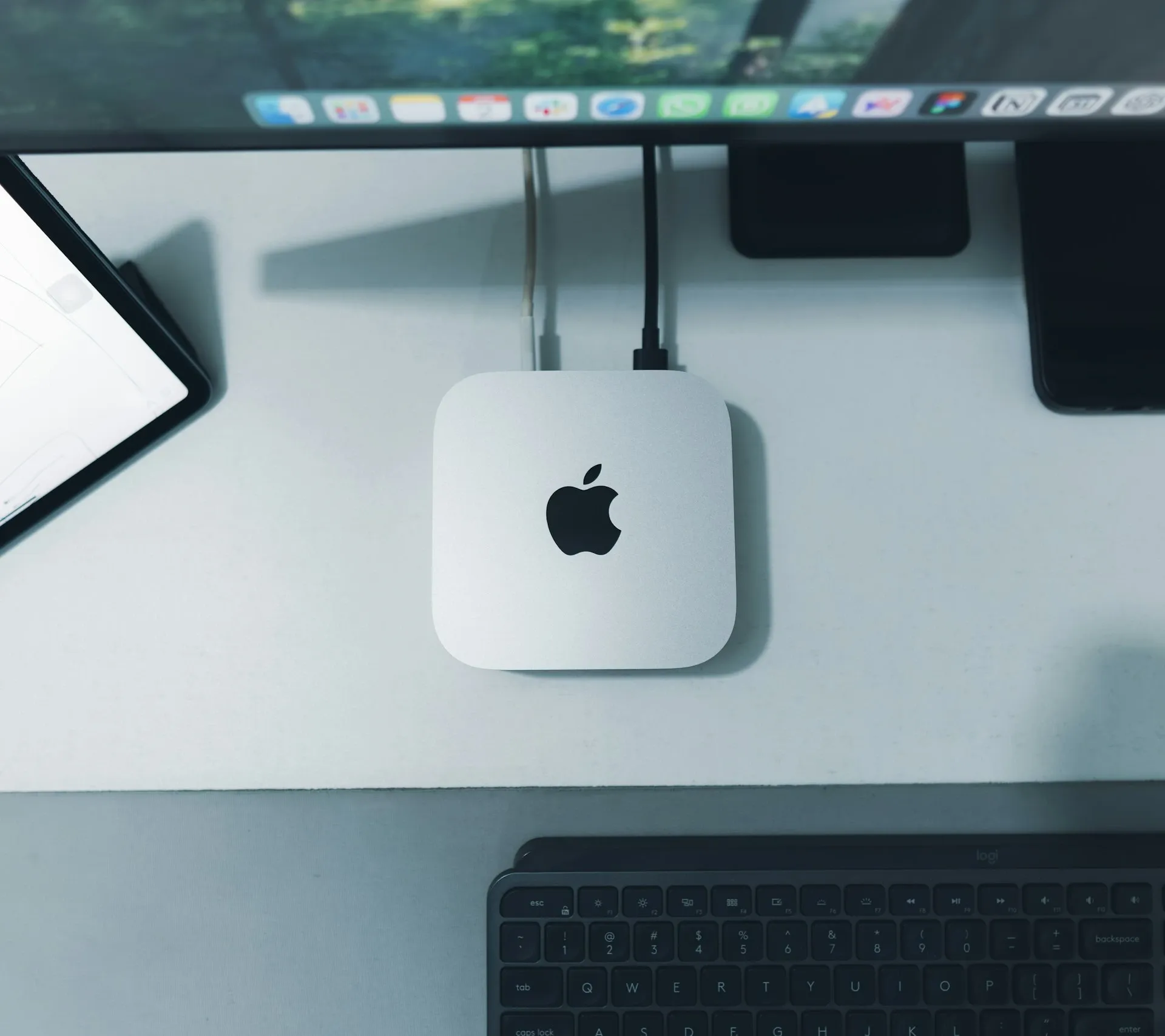

An MDM migration that ran like clockwork

One of our clients had been running two management consoles side by side for years: Jamf Pro for the Macs, Microsoft Intune for the Windows devices and smartphones. It worked, but it cost twice as much time and money as it needed to. When we sat down together to see whether everything could move to Intune, we drew up a migration timeline.
Since last year, Apple has offered a feature that lets you move devices from one MDM to another without wiping them. Exactly what we needed, except we couldn't use it. In this article you'll read why not, how we solved it instead, and everything we took care of in one go along the way.
In short
Why this client wanted to move from Jamf to Intune
As the company grew, more and more operating systems came into play, and personal smartphones came on top of that. People simply read their email on their own device, and that's just as likely to be an Android as an iPhone. That left two management portals to maintain: Jamf Pro for the Macs and Intune for everything else. In practice, that means two sets of policies you keep up separately, and which inevitably drift apart over time.
So why go from Intune to Jamf in the first place? Jamf is at its strongest in companies that run entirely on Apple, and in organisations with their own IT team that want to work out every detail of device management themselves. If that's your situation, Jamf gives you things no other platform can.
The thing is, Intune has caught up considerably as an MDM in recent years. For a mixed environment that already runs on Microsoft 365, the gap has become small. And that's where licensing starts to count: an average SME with Microsoft 365 Business Premium gets M365, antivirus with EDR through Defender for Business, and full device management for Mac, Windows, iOS and Android, all in one go. Jamf comes on top of that as a separate licence.
So for this client, the question wasn't what each platform is capable of. It was that they no longer needed the second platform. Everything Jamf did for their Macs was already included in a licence they were paying for anyway.
Beyond that, this client is fully on Microsoft 365. Conditional access, compliance rules and reporting were all already in Entra ID, and the Macs were really sitting next to it rather than inside it. Both platforms were simply doing their job, so technically nothing was wrong. It just cost time every month, plus licence fees that weren't going anywhere.
What tipped the balance is that Intune can now do three things it couldn't do three years ago: Platform SSO with the Secure Enclave, declarative update management, and full integration with Apple Business Manager. Without those three, we would have advised against this migration.
If you run entirely on Apple, or you have your own IT team that wants to work out every detail of device management, Jamf remains the better choice. If you have a mixed fleet and already work with Microsoft, Intune today simply does what you need.
Why we couldn't use Apple's automatic migration
Since macOS 26, iOS 26 and iPadOS 26, you can assign a device to a different MDM server in Apple Business (formerly Apple Business Manager), set a deadline, and the device then migrates itself. The user gets a notification, clicks twice, and the device is in the new console. No wiping, no data loss and no need to lift Activation Lock. You can set the deadline anywhere from one day to almost three months ahead, which is handy if you want to migrate in waves.
The feature only works on OS 26 or later, and devices on macOS 15 Sequoia or earlier simply aren't eligible. Those still have to go the traditional route: wipe and re-enrol. That's stated in Apple's own documentation and confirmed in the deployment guides from Microsoft, Ivanti and Addigy.
WHY it couldn't be done automatically here
Part of the fleet was still running an older version of macOS, because it had industry-specific software that the vendor didn't yet support on the latest macOS. Upgrading that software wasn't an option at the time, and without a macOS upgrade there's no automatic migration.
We didn't want to wipe and rebuild. With 20 devices, that means a day of lost productivity per user, a mountain of reinstallation work, and the risk of losing local files that aren't stored anywhere else. We weren't prepared to take that risk for a migration whose main purpose was to save the client time and money.
What our enrolment looks like
For us, an enrolment should tell you what it's doing, in an Apple-like way. That's why we chose to write our own enrolment interface. It shows what's being installed and gives key information about new applications, or about how users can temporarily become an administrator. Depending on internet speed, the enrolment clocked in at between 5 and 10 minutes.
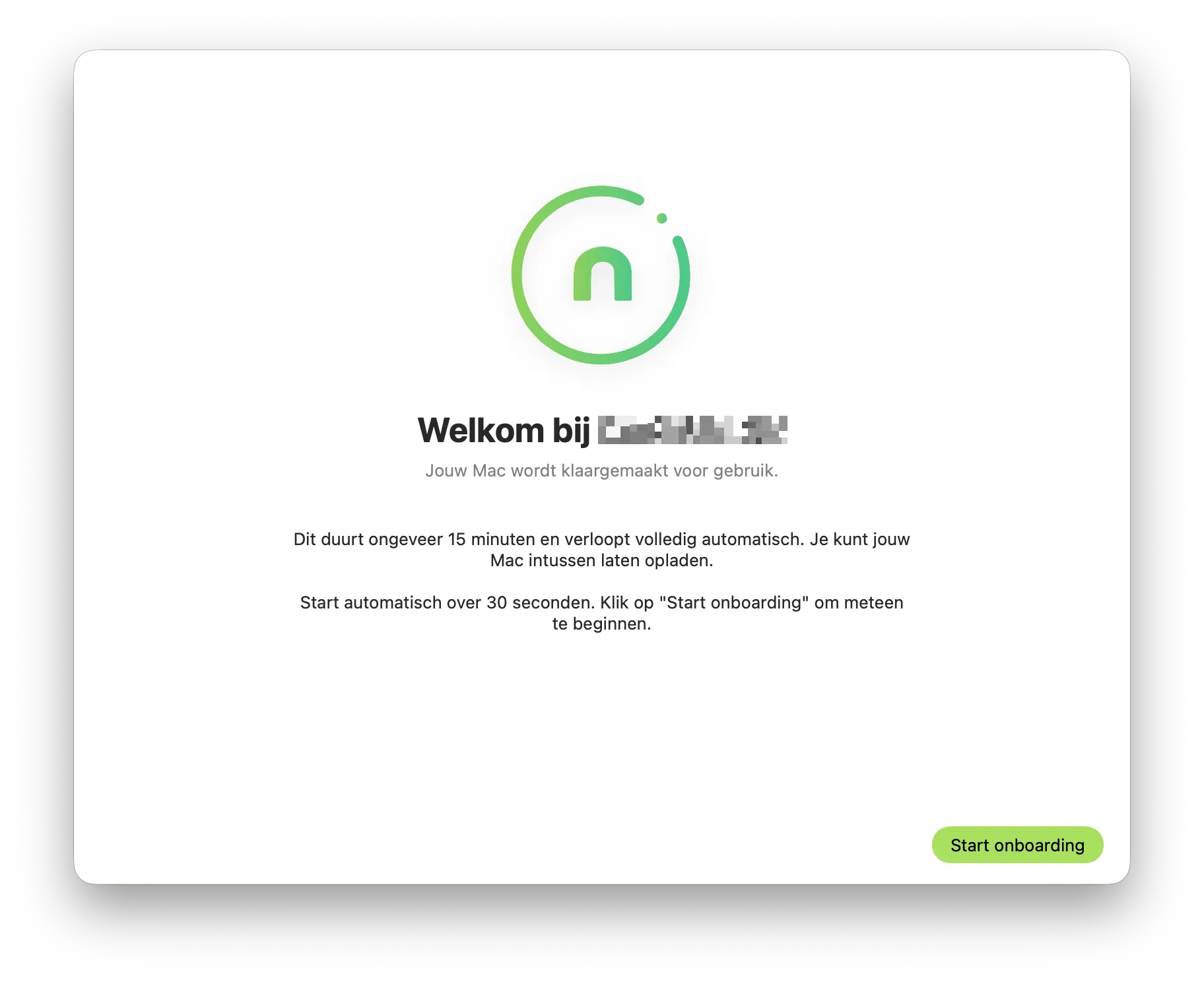
Behind the scenes, here's what happens: first, the old MDM's management profile is removed, together with all the configuration profiles attached to it. User accounts, files and the FileVault key are left untouched. The Mac then checks in and immediately receives the full policy set: disk encryption, firewall, compliance rules and conditional access.
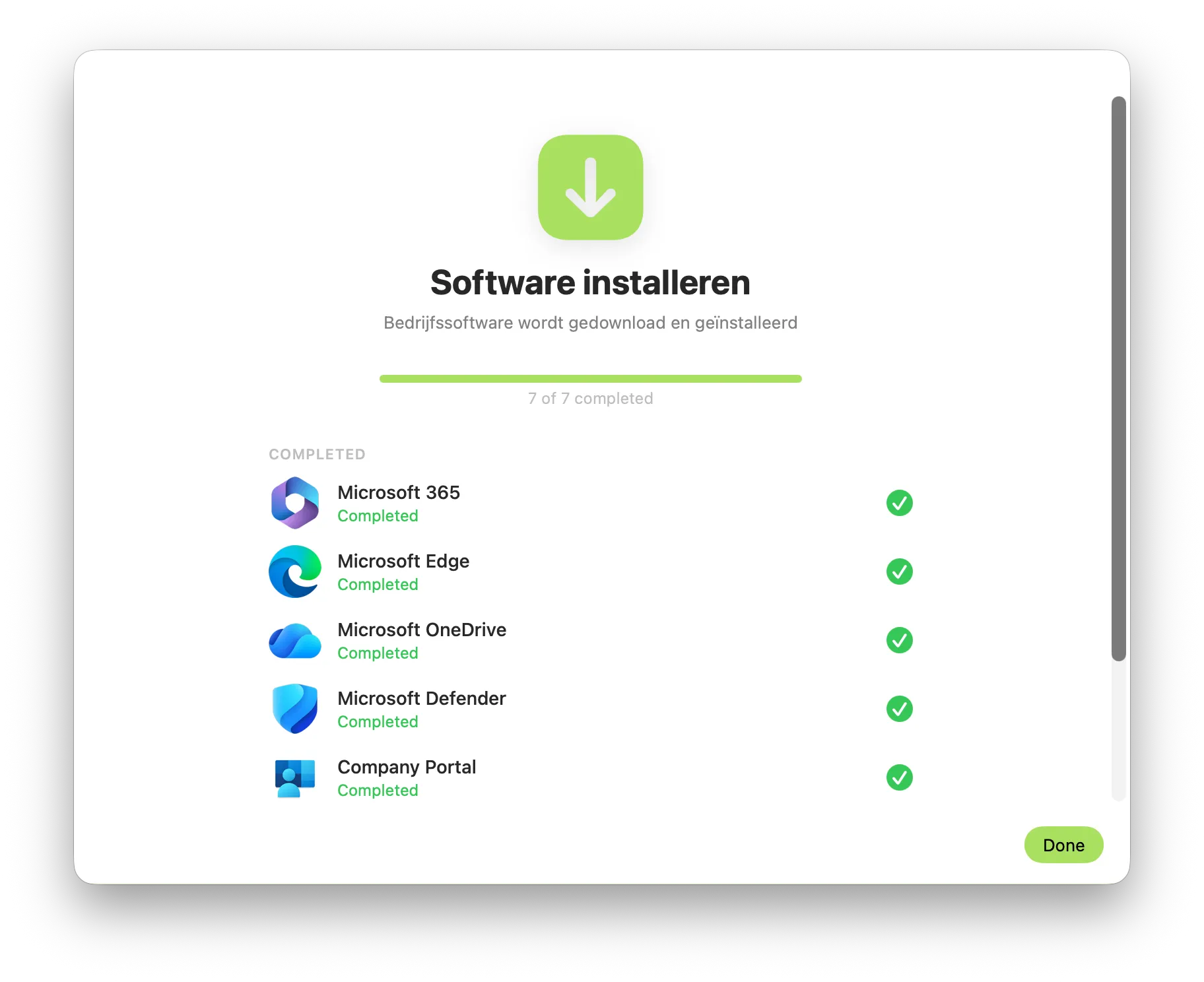
Next, the Mac installs the latest minor update for its own macOS version, which we'll come back to below. Then comes Platform SSO registration, where the user signs in once with their work account. Finally, the applications roll out: 1Password with the browser extensions, Microsoft 365, the company-specific software and our app updater. At the end, the user gets an overview of what has happened, and the Mac reports its compliance status to Intune.
Why the macOS update is part of the enrolment
Every Mac that comes out of our enrolment runs the latest minor update of its own major version. If the device was on macOS 15.3, it comes out on the latest 15.x, not on 26. That way the OS is immediately on the most recent release of its version.
Why build it into the enrolment rather than doing it afterwards? Because an update you schedule later is an update the user dismisses. That's human and entirely understandable, because it's never a good time. During the enrolment, the user already knows their Mac will be busy for a while, so those twenty minutes cost them nothing extra.
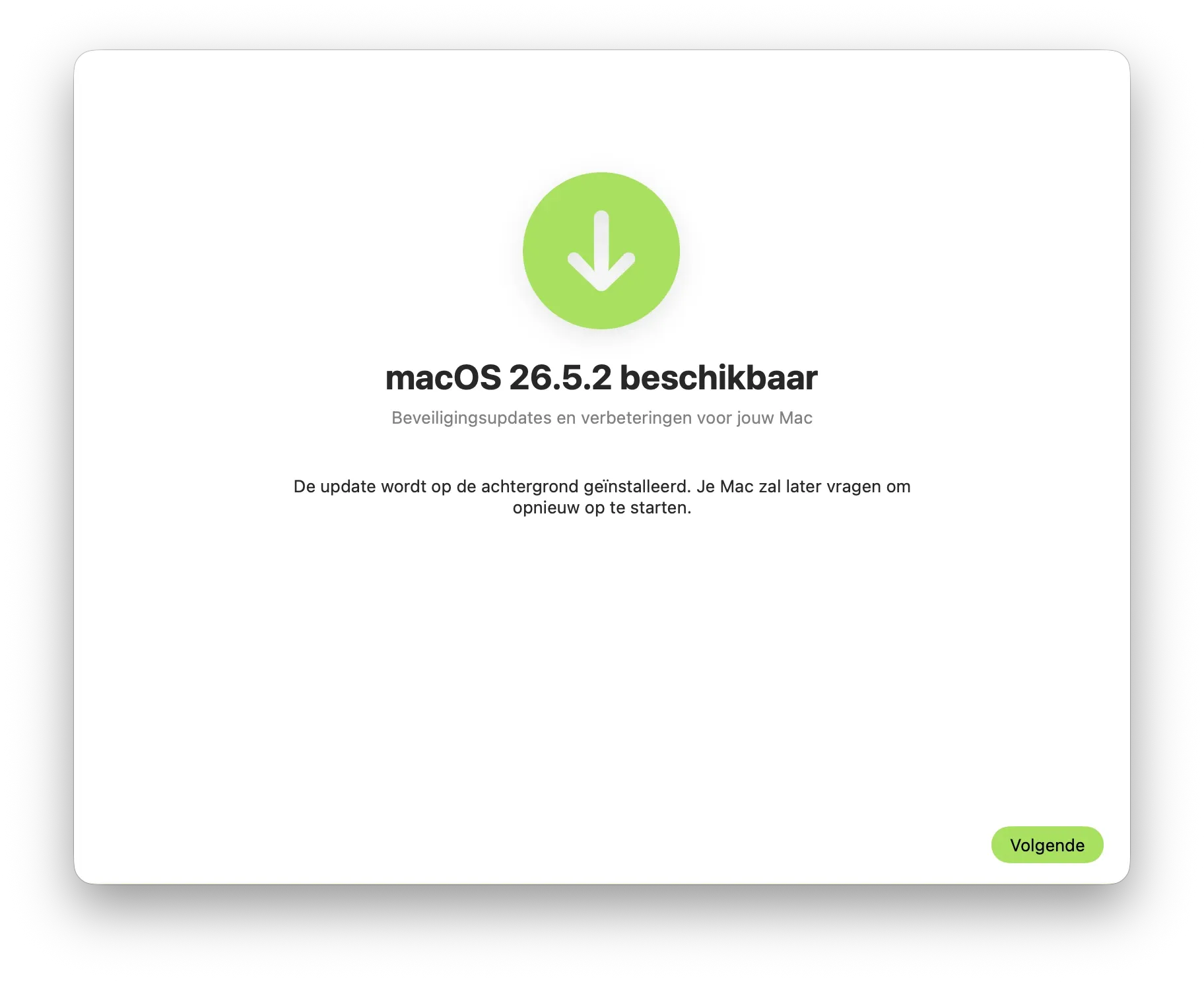
After that, Intune takes over with declarative update management, the method Apple itself prescribes and which works from macOS 14 onwards. Microsoft has phased out the old MDM-based update policies, so this isn't simply the nicest route; it's gradually becoming the only one left. You set a version and a deadline, the device schedules the installation itself, and you can see in the console who's falling behind.
Deferral for major versions is configured separately from deferral for minor updates. That way, security fixes come in quickly and major versions stay under control until your industry software vendor finally catches up.
Quick checklist
What Platform SSO solves
Over the past year, Microsoft blocked 7,000 password attacks per second in Entra ID, and 97% of all identity attacks turn out to be password spray attacks. Those figures come from the Microsoft Digital Defense Report 2025. As long as your users also have a separate local Mac password that nobody manages and that never expires, you have a second door you have no view of.
Platform SSO links the macOS login screen directly to Entra ID. The user signs in with their work account, and that immediately becomes their Mac password. If the password changes in Entra, it changes on the Mac too. If the account is blocked because someone leaves the company, the Mac is blocked in the same move, with no separate action needed.
We set up Platform SSO with the Secure Enclave as the authentication method. The key is then held in hardware, in the Mac's security chip, and never leaves that chip, so the user signs in with Touch ID instead of a password. According to the same Microsoft report, phishing-resistant MFA blocks more than 99% of identity attacks, even when the attacker already has the correct password.
Technically, Platform SSO works from macOS 13, although in practice we recommend at least macOS 14 Sonoma. The variant where registration already happens during Automated Device Enrollment again requires macOS 26. So for this client we handled the registration within our own enrolment, with exactly the same end result for the user.
Why 1Password and not Apple's Passwords app
We get this question from almost every client, and it's a fair one: doesn't macOS come with a free password manager built in? It does, and for personal use Apple's Passwords app is fine. For a business, though, it falls short on three points, and all three come down to control.
The first is ownership. Your employee's passwords live in their personal Apple Account. When they leave, the passwords leave with them. As a company you can't get to them, you can't take anything over and you can't reclaim anything, because there's no management layer above that account. Access to your own supplier portals then depends on the goodwill of someone who has just handed in their notice.
The second is permissions. Apple does have shared groups, but within a group everyone has exactly the same rights: every member can view, edit and delete everything. The only person who can add or remove members is whoever created the group, and that's a colleague, not an administrator. So you can't arrange for only your finance team to have access to the banking portals while the rest of the team doesn't.
The third is reach. Those shared groups only work between Apple devices running iOS 17 or macOS Sonoma and later. If you have Windows machines or Android phones in the business, and almost every SME does, part of your team is simply left out.
In 1Password you work with vaults, and for each vault you decide which group can see or edit what. The finance vault goes to the people who actually need it. The IT vault, with the passwords for service accounts, stays with a handful of administrators. Marketing gets the social media vault and nothing else. That separation is the whole point: not everyone should see everything, not even in a small business.
When someone leaves, they lose access the moment you disable their account, without anyone having to work through a checklist. And everything that happens is recorded in an audit log, so you can see afterwards who opened which vault.
Tip from the field
Roll out the password manager before you switch on SSO, not after. Users who first notice that signing in is getting easier are far more willing to accept that everything else is getting stricter.
Why every MSP client gets our app updater
macOS updates itself and so does Microsoft 365, so on paper everything looks fine. But Zoom, Slack, Chrome, Adobe Reader, VLC and that one PDF tool someone installed years ago stay on whatever version was current the day they were installed. That's exactly where the vulnerabilities are, and exactly where nobody is looking.
By default, our app updater checks the best-known applications on the device every week and updates them to the latest version. The user can postpone the update a few times, so they never lose important work.
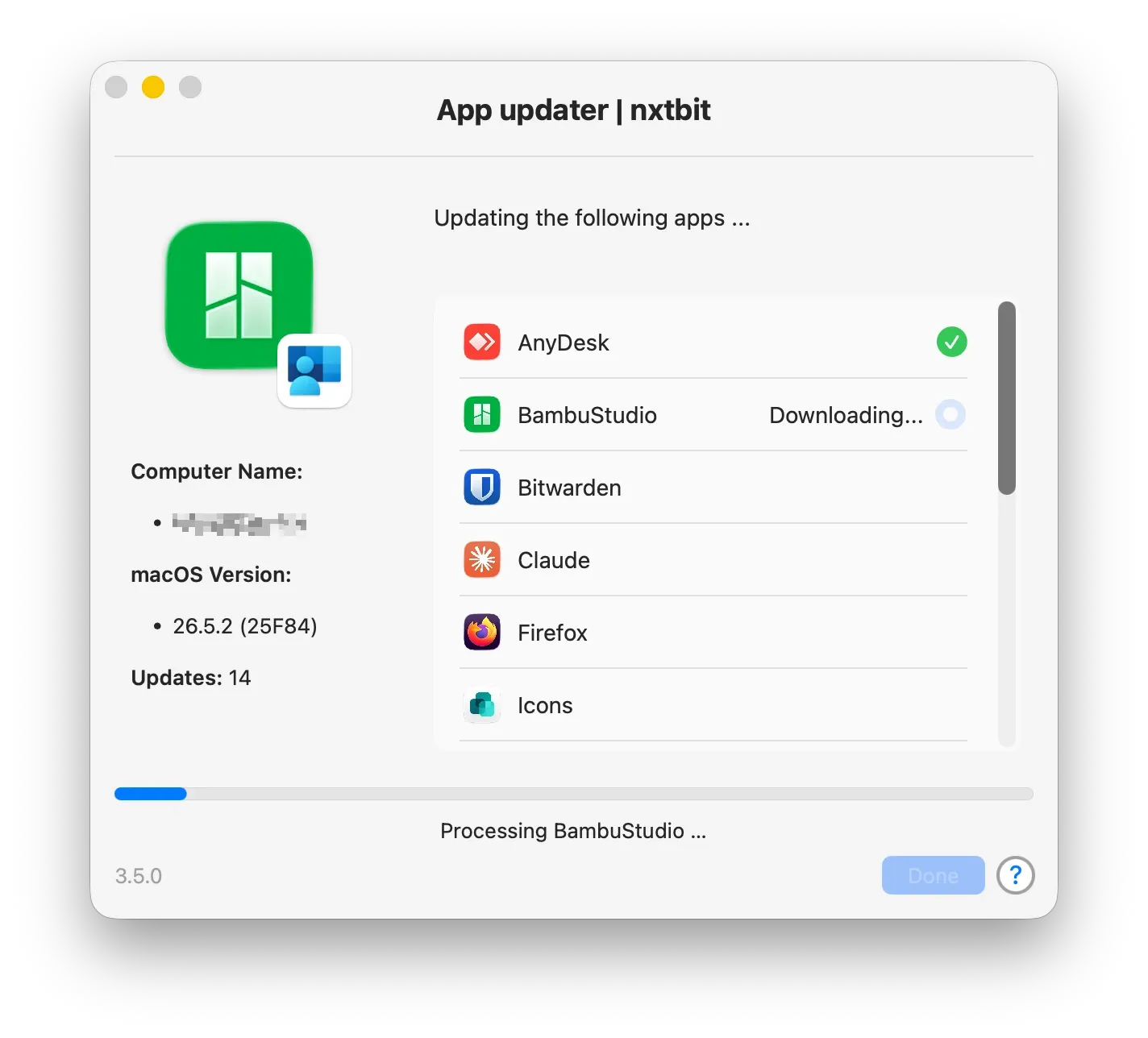
We switch this on by default for all our MSP clients, even when nothing else is being migrated. A fleet where you don't know which app versions are running is a fleet you aren't really managing.
What the client actually gets out of it
After one hour, all 20 Macs were in Intune. Not a single device was wiped, no user lost any files, and the industry software still runs, because we deliberately kept those devices on their major version.
There's now one console instead of two, and one licence contract fewer. Mac users now sign in just like their Windows colleagues, with the same account and under the same rules, and the helpdesk no longer has to search two systems to find where a problem comes from.
Frequently asked questions
Do I need to wipe my Macs to move from Jamf to Intune?
Not necessarily. If your device runs macOS 26 or later and was added to Apple Business Manager on that version, it migrates itself without being wiped. On older versions you need a guided enrolment, like the one we built, or a full reinstall.
From which macOS version does the Apple Business migration work?
From macOS 26, iOS 26 and iPadOS 26. The device also has to be company-owned and enrolled through Automated Device Enrollment. Devices that were added to Apple Business Manager on an earlier version and only upgraded later still need a one-off reset.
Will I lose features if I move from Jamf to Intune?
Jamf goes deeper into Apple-specific management, with more extensive self-service, for example. For a mixed fleet that already runs on Microsoft, having a single console usually carries more weight.
Should I bring my employees' personal phones under management?
If you care about your company data, yes. MAM, mobile application management, already gets you a long way. It secures only the company data within Outlook, Teams and OneDrive, without enrolling the device. You see no personal photos, no location and no personal apps, and if a device is lost or someone leaves, a selective wipe removes only the company data. Even so, nxtbit recommends also enrolling personal devices using the User Enrollment approach.
What's the difference between MAM and Apple User Enrollment?
MAM secures company data within the apps and works on both iOS and Android. User Enrollment goes further on iPhone and iPad: iOS creates a separate volume, so the separation sits in the operating system itself. When the device is unenrolled, that volume disappears, and the company data with it. That way you always stay in control of who can see what.
Can Intune make sure my Macs stay up to date?
Yes, through declarative update management from macOS 14. You set a version and a deadline, and the device schedules the installation itself. You configure minor updates and major versions separately, so you can enforce security fixes without forcing a major version your software can't handle.
Does Platform SSO work on every Mac?
Platform SSO works from macOS 13, though in practice macOS 14 Sonoma is the minimum. To sign in with Touch ID via the Secure Enclave, you need a Mac with Apple silicon or a T2 chip. Registration during Automated Device Enrollment requires macOS 26.
Is your Mac fleet stuck between two consoles?
We'll look at your current setup, your macOS versions and your industry software, and tell you honestly whether migrating makes sense. Even if the answer is no.
Sources
Verizon, 2026 Data Breach Investigations Report, 20 May 2026, accessed 7 August 2026 via Infosecurity Magazine.
Microsoft, Microsoft Digital Defense Report 2025, accessed 7 August 2026 via Microsoft Security Insider.
Microsoft, Apple making device migration to Microsoft Intune easy with the OS 26 release, accessed 7 August 2026 via Microsoft Community Hub.
Microsoft, macOS Platform Single Sign-on overview, accessed 7 August 2026 via Microsoft Learn.
Microsoft, Microsoft 365 Business Premium security frequently asked questions, accessed 7 August 2026 via Microsoft Learn.
Microsoft, App protection policies overview, accessed 7 August 2026 via Microsoft Learn.
Apple, Secure device management overview, Apple Platform Security, accessed 7 August 2026 via Apple Support.
Apple, Account-driven enrollment methods with Apple devices, accessed 7 August 2026 via Apple Support.
Jamf, Manage Apple and Android Devices in One Platform, March 2026, accessed 7 August 2026 via Jamf Blog.
Microsoft, Admin guide and checklist for macOS software updates, accessed 7 August 2026 via Microsoft Learn.
Addigy, Migrating MDM Devices Using Apple Business Manager and OS 26+, accessed 7 August 2026 via Addigy Support.