

How can wehelp you?
Take the quickest route to a fix. If your computer gets stuck, we look at your screen with nxtbit remote, so you don't have to go anywhere.
"Getting stuck with your computer is frustrating. We keep it as short as possible, so you don't have to go anywhere or spend ages on hold."
 Raf VandelaerFounder of nxtbit
-
Call us
011 15 46 03
During working hours, you'll get straight through to someone at nxtbit.
Call us -
Customer portal
Report a problem and keep track of your requests, whenever it suits you.
Go to the customer portal -
Remote help
Let us look at your screen. Install nxtbit remote in four steps.
Start the guide
Glad you're here! Let's get you set up with nxtbit remote.
We'll walk you through installing nxtbit remote on your device, one step at a time. Do you use a Mac or Windows? Choose your system here.
macOS
For security reasons, macOS asks you to give specific permissions to apps that need privacy-sensitive access, such as sharing your screen or controlling your computer.
-
Step 1: Download
DownloadClick the download button below to get the installation file. On the page that opens, click connect. Once the file has downloaded, open it.
-
Step 2: Install
Double-click the file you have just downloaded. A new window opens.
Double-click 'downloader'.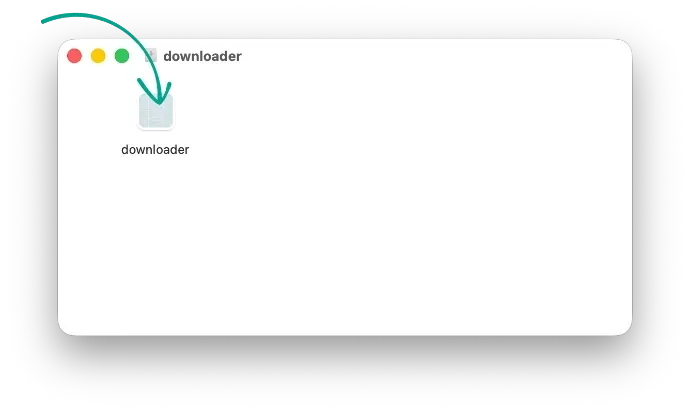
-
Step 3: Permissions
nxtbit remote needs specific access to take over your screen. In the window below, click Request access for each permission in turn.
A new window opens, which you can see on the right.
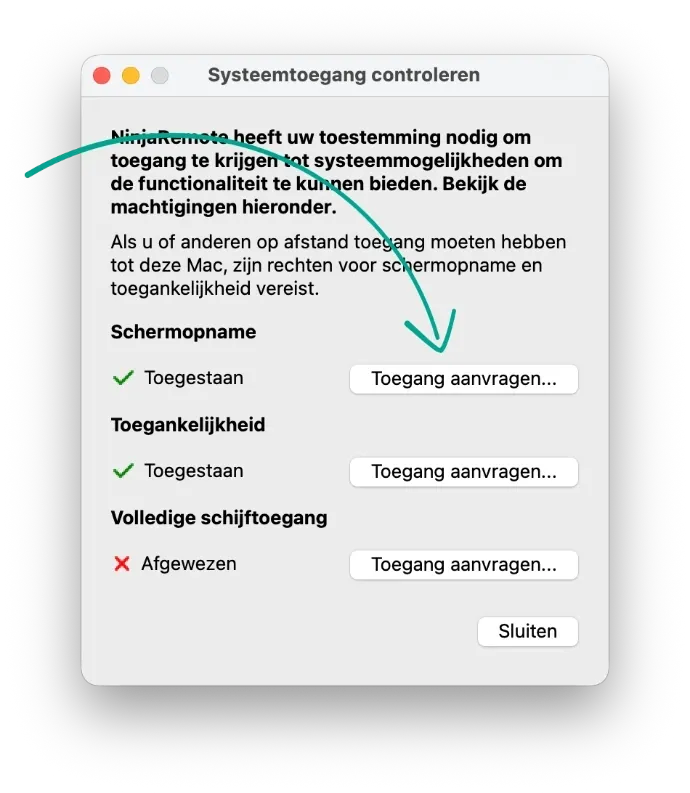
Give permission
In the window that opens, switch on ncstreamer. Once the switch turns blue, you can close this window. Do this for each of the three permissions on the left of this guide.
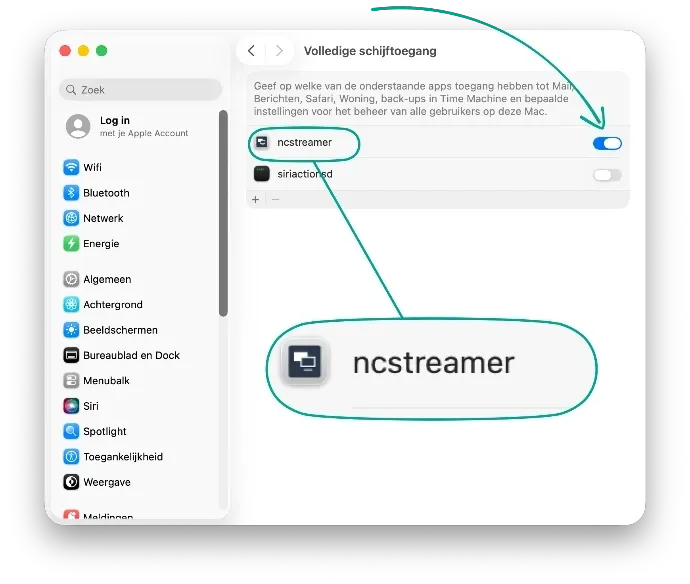
-
Step 4: Accept the connection
Once you have given permission, you can accept our connection in the nxtbit remote app, so we can take a look at your problem.
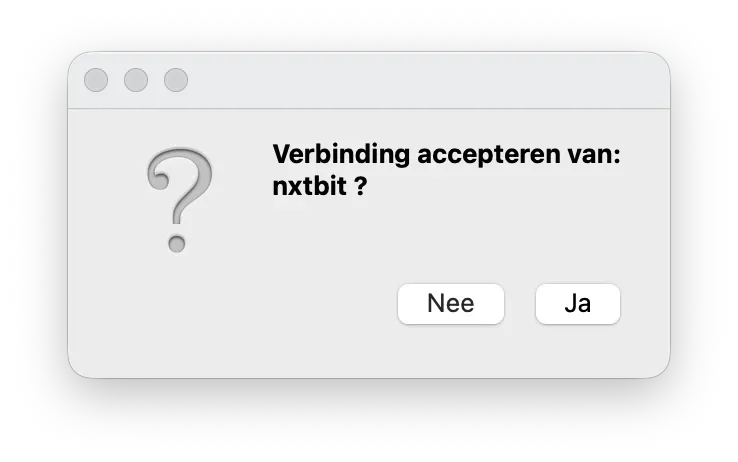
All set. Let us know once you've opened nxtbit remote, and we'll take a look.
Windows
For security reasons, Windows asks you to give apps specific permissions. This handy guide shows you, step by step, how to do that for nxtbit remote.
-
Step 1: Download
DownloadClick the download button below to get the installation file. Once the file has downloaded, open it.
-
Step 2: Install
Double-click the file you have just downloaded.
nxtbit remote starts installing. -
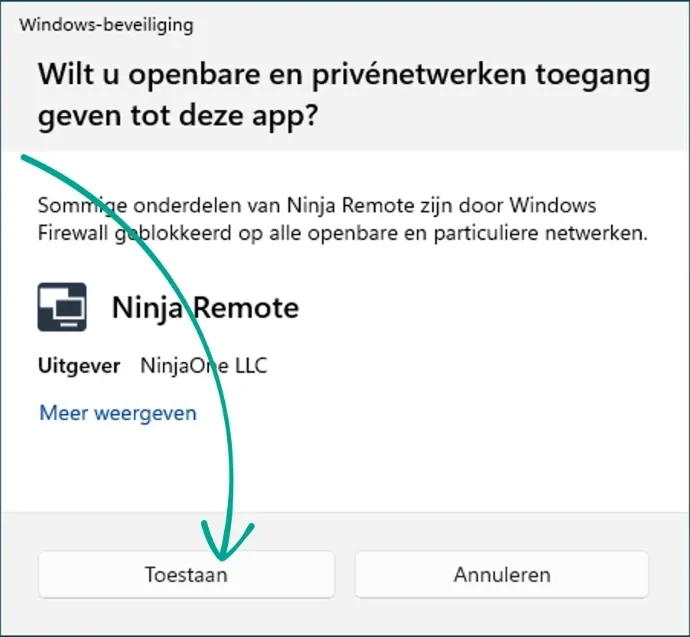
Step 3: Permissions
nxtbit remote needs specific access to take over your screen. In the window below, click Allow.
-
Step 4: Accept the connection
Once you have given permission, you can accept our connection in the nxtbit remote app, so we can take a look at your problem.
All set. Let us know once you've opened nxtbit remote, and we'll take a look.